
TrueCrypt now offers whole disk encryption. I've used this software regularly for the past three years for its standard encryption functionality (which is awesome) but was cautious about using it for the whole disk. But after scanning through this transcript I decided that TrueCrypt is probably robust enough for the job by now, so I gave it a whirl on my laptop. I won't explain the full rationale for whole disk encryption here, just relate the results and offer some comparisons with other whole-disk encryption products I've used.
You use a wizard-like dialog box to step through the encryption process, and the steps are pretty straightforward. You pick your password and generate your keys, then the program makes you burn a .ISO of a rescue disk (mine was 2mb in size) and then it checks the rescue disk to ensure it was burned properly. The system then replaces your bootloader and does a test reboot before it even starts the encryption process, to make sure the TrueCrypt bootloader will work on your machine. At each step there is a lot of detailed explanatory text and I really get the sense that the program's authors know their way around all the possibilities and have the user's best interest in mind.
Feature Comparison: Like other products, TrueCrypt's encryption process happens "in-place" - you can use your computer normally while the hard drive is being encrypted. It took about 45 minutes to encrypt my 32GB drive (without the full disk wipe option).
The pre-boot authentication is very simple. The screen is plain-text, no graphic logos. You type in your password which is shown as asterisks on the screen, after which the computer boots normally. Hopefully future versions will allow some customization of this screen. Some people have even asked for the option of a blank screen with no visual feedback as you type, allowing you to lie to people and say the thing is broken and won't boot up, could be very useful.
Unlike other products I have used, such as GuardianEdge, TrueCrypt does not support single sign-on. With single sign-on, the encryption software synchronises your pre-boot password with your Windows password, and you only have to type in your password once - at bootup - and the encryption software logs into Windows for you. Hopefully this can be added later as well.
Performance: One of the guys in the transcript I mentioned earlier made the interesting claim that his hard disk performance bechmarks actually improved after the encryption was in place. I was curious about this, so I did some performance benchmarks of my hard drive before and after the encryption.
My laptop is a bit unusual because it has a small 32GB SSD flash drive instead of a spinning-disc hard drive. This means it is a lot faster than a normal hard disk to start with. Here is the "before" benchmark:
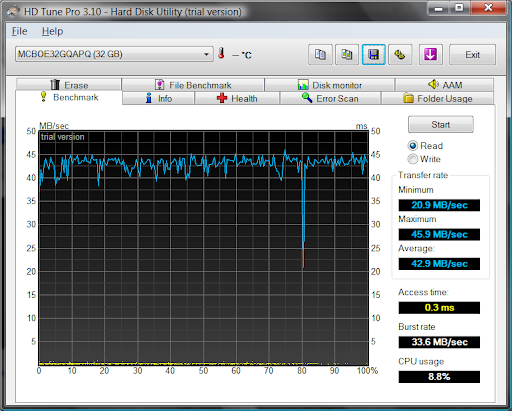
(As you'll see if you check out some comparison shots from HD Tune's website, a 0.3 msec seek time is pretty durn fast. Also an SSD's performance doesn't vary depending on the location of the file, while on a normal disk the files on the outside of the spinning disk come up faster. But I disgress.)
Here is the "after" shot:
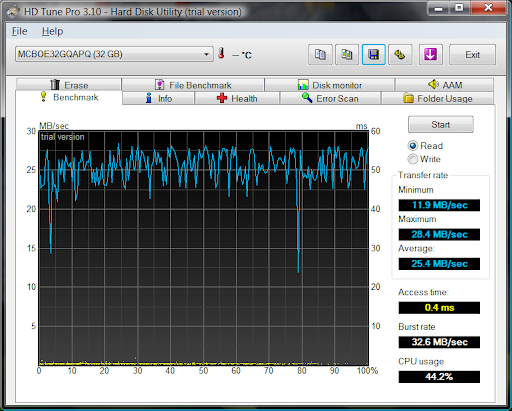
The access time is still pretty low, but the average transfer rate has droppped by 40% and CPU usage has roughly quintupled.
It's possible that a normal spinning disk would actually experience gains as a byproduct of TrueCrypt encryption, but I haven't had time to try it out and I probably won't get to it anytime soon.
You use a wizard-like dialog box to step through the encryption process, and the steps are pretty straightforward. You pick your password and generate your keys, then the program makes you burn a .ISO of a rescue disk (mine was 2mb in size) and then it checks the rescue disk to ensure it was burned properly. The system then replaces your bootloader and does a test reboot before it even starts the encryption process, to make sure the TrueCrypt bootloader will work on your machine. At each step there is a lot of detailed explanatory text and I really get the sense that the program's authors know their way around all the possibilities and have the user's best interest in mind.
Feature Comparison: Like other products, TrueCrypt's encryption process happens "in-place" - you can use your computer normally while the hard drive is being encrypted. It took about 45 minutes to encrypt my 32GB drive (without the full disk wipe option).
The pre-boot authentication is very simple. The screen is plain-text, no graphic logos. You type in your password which is shown as asterisks on the screen, after which the computer boots normally. Hopefully future versions will allow some customization of this screen. Some people have even asked for the option of a blank screen with no visual feedback as you type, allowing you to lie to people and say the thing is broken and won't boot up, could be very useful.
Unlike other products I have used, such as GuardianEdge, TrueCrypt does not support single sign-on. With single sign-on, the encryption software synchronises your pre-boot password with your Windows password, and you only have to type in your password once - at bootup - and the encryption software logs into Windows for you. Hopefully this can be added later as well.
Performance: One of the guys in the transcript I mentioned earlier made the interesting claim that his hard disk performance bechmarks actually improved after the encryption was in place. I was curious about this, so I did some performance benchmarks of my hard drive before and after the encryption.
My laptop is a bit unusual because it has a small 32GB SSD flash drive instead of a spinning-disc hard drive. This means it is a lot faster than a normal hard disk to start with. Here is the "before" benchmark:
(As you'll see if you check out some comparison shots from HD Tune's website, a 0.3 msec seek time is pretty durn fast. Also an SSD's performance doesn't vary depending on the location of the file, while on a normal disk the files on the outside of the spinning disk come up faster. But I disgress.)
Here is the "after" shot:
The access time is still pretty low, but the average transfer rate has droppped by 40% and CPU usage has roughly quintupled.
It's possible that a normal spinning disk would actually experience gains as a byproduct of TrueCrypt encryption, but I haven't had time to try it out and I probably won't get to it anytime soon.
